

Last Updated on February 5, 2025 by Rakesh Gupta
Big Idea or Enduring Question:
-
How can I use the transform element to easily perform operations like sum and count without using a loop?
Objectives:
After reading this blog, you’ll be able to:
- Utilize the Transform element to map and transform source data to target data.
- Count the number of items in a source collection.
- Aggregate data from a source collection to calculate the sum.
- And much more!
👉 Previously, I’ve written several posts about how to use the Transform element and its use cases. Why not check them out while you’re at it?
- Transform Elements Over Loops: A Modern Method for Collecting IDs in Salesforce Flow
- Transform Elements Over Loops: Create Tasks for Opportunities Without Loops
- Use Multiple Data Sources in Transform Element to Fetch Data from Multiple Objects
Business Use case
Warren Mason, a Junior Developer at Gurukul on Cloud (GoC), has been working closely with his mentor, Joe, to understand the Transform element. With Joe’s guidance, Warren has gained a solid understanding of its functionality and applications.
During a discussion with Joe about a separate issue, Warren shared a new requirement that could serve as an excellent use case for the Transform element.
When an account is updated, find all related open opportunities and calculate the total sum of their opportunity amounts.
Automation Champion Approach (I-do):
In the past, I wrote a detailed article on how to perform a count in Flow using the Assignment element, which can be found Count Number of Records in a Record Collection Variable.
I also wrote a detailed article on using aggregate functions in Flow. You can read more about it Work With Aggregate Functions in Salesforce Flow. This article demonstrates how to achieve aggregation using loops and the Assignment element. The steps to solve it using loops and the Assignment element are provided in the screenshot below.

Now, Salesforce natively supports aggregation (sum) through the Transform element. This article will focus on how to use the Transform element to perform aggregate sums. Additionally, you can use the Transform element to count the number of items in a source collection.
As of Spring ’25, the Transform element is only available with after-save flows and not with before-save record-triggered flows.
Guided Practice (We-do):
There are 3 steps to solve Warren’s business requirement using Record-triggered After-Save Flow. We must:
- Define flow properties for a record-triggered flow.
- Add a Get Records element to find related open opportunities.
- Add a Transform element to calculate the sum of opportunity amounts.
Step 1: Define Flow Properties
- Click Setup.
- In the Quick Find box, type Flows.
- Select Flows then click on the New Flow.
- Select the Start From Scratch option and click on Next.

- Select the Record-Triggered Flow option, click on Create
- Object: Account
- Trigger the Flow When: A record is created or updated
- Optimize the Flow For: Action and Related Records
- Click the X at the top to save your changes.


Step 2: Adding a Get Record Element to Find Related Open Opportunities
The next step is using the Get Element to find related open opportunities. We will apply the filter logic to find the related open opportunities here instead of using an additional element.
- On Flow Designer, click on the +icon and select the Get Records element.
- Enter a name in the Label field; the API Name will auto-populate.
- Select the Opportunity object from the dropdown list.
- Select All Conditions Are Met (AND).
- Set Filter Conditions
- Row 1:
- Field: AccountId
- Operator: Equals
- Value: {!$Record.Id}
- Click Add Condition
- Row 2:
- Field: IsClosed
- Operator: Equals
- Value: {!$GlobalConstant.False}
- Row 1:
- How Many Records to Store:
- Select All record
- How to Store Record Data:
- Choose the option to Choose fields and let Salesforce do the rest.
- Select Opportunity Fields to Store in Variable
- Id
- Name
- StageName
- AccountId
- OwnerId
- Select Opportunity Fields to Store in Variable
- Choose the option to Choose fields and let Salesforce do the rest.
- Click the X at the top to save your changes.


Step 3: Add a Transform Element to Calculate the Sum of Opportunity Amounts
Now, we will add a Transform element to calculate the total sum of the amounts from all related open opportunities. This step is crucial for aggregating the data efficiently without using loop.
- On Flow Designer, click on the +icon and select the Transform element.
- Enter a name in the Label field; the API Name will auto-populate.
- For Source Data select {!Get_Open_Opportunities}.

- For Target Data select the following options:
- Data Type: Currency
- Allow multiple values (collection): Unchecked

- Click Create
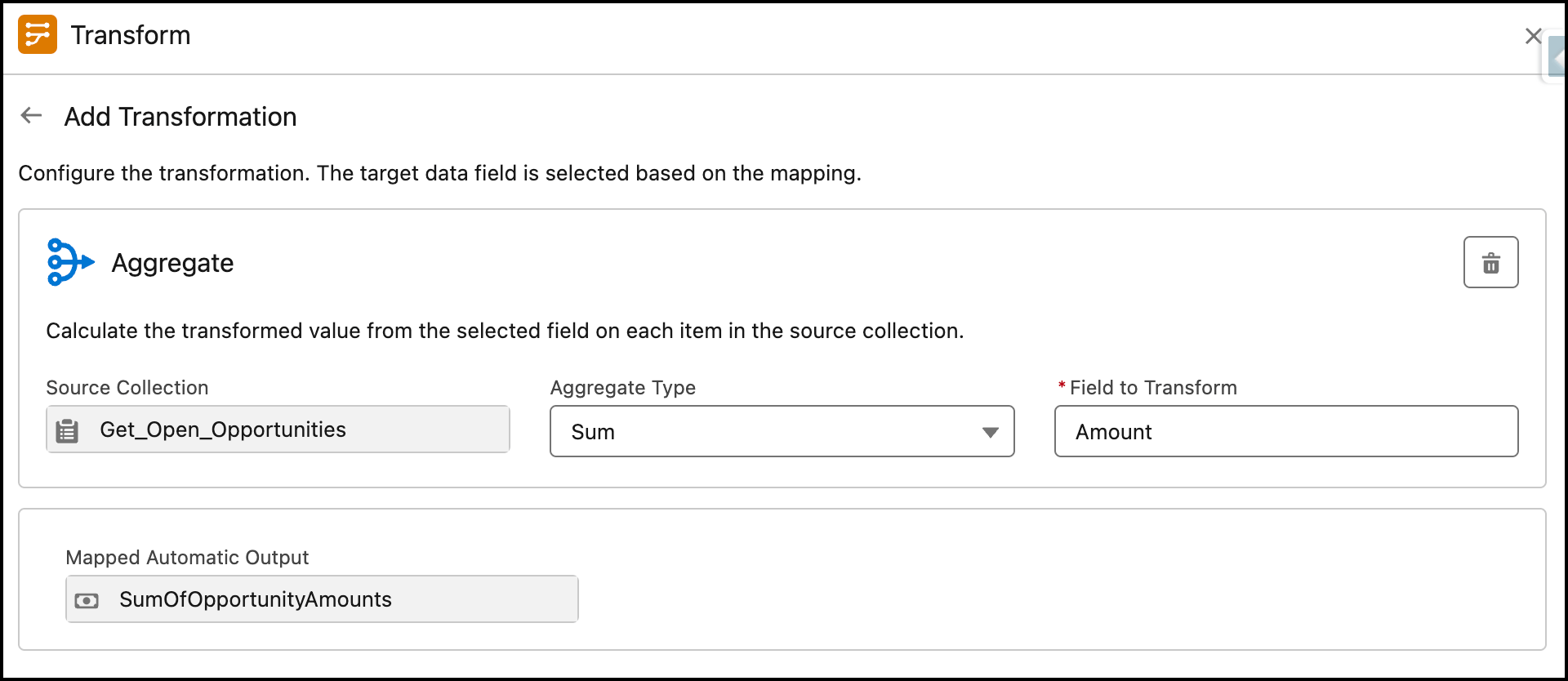
- Map the Get Open Opportunities (Source Data) to the SumOfOpportunityAmounts (Target Data). A pop-up will appear to configure the aggregate function.
- Source Collection: Get_Open_Opportunities
- Aggregate Type: Sum
- Field to Transform: Amount

- Once done, click on the <– arrow to return to the Flow designer.
- Click the X at the top to save your changes.



In the end, Warren’s Flow will look like the following screenshot:

Once everything looks good, perform the steps below:
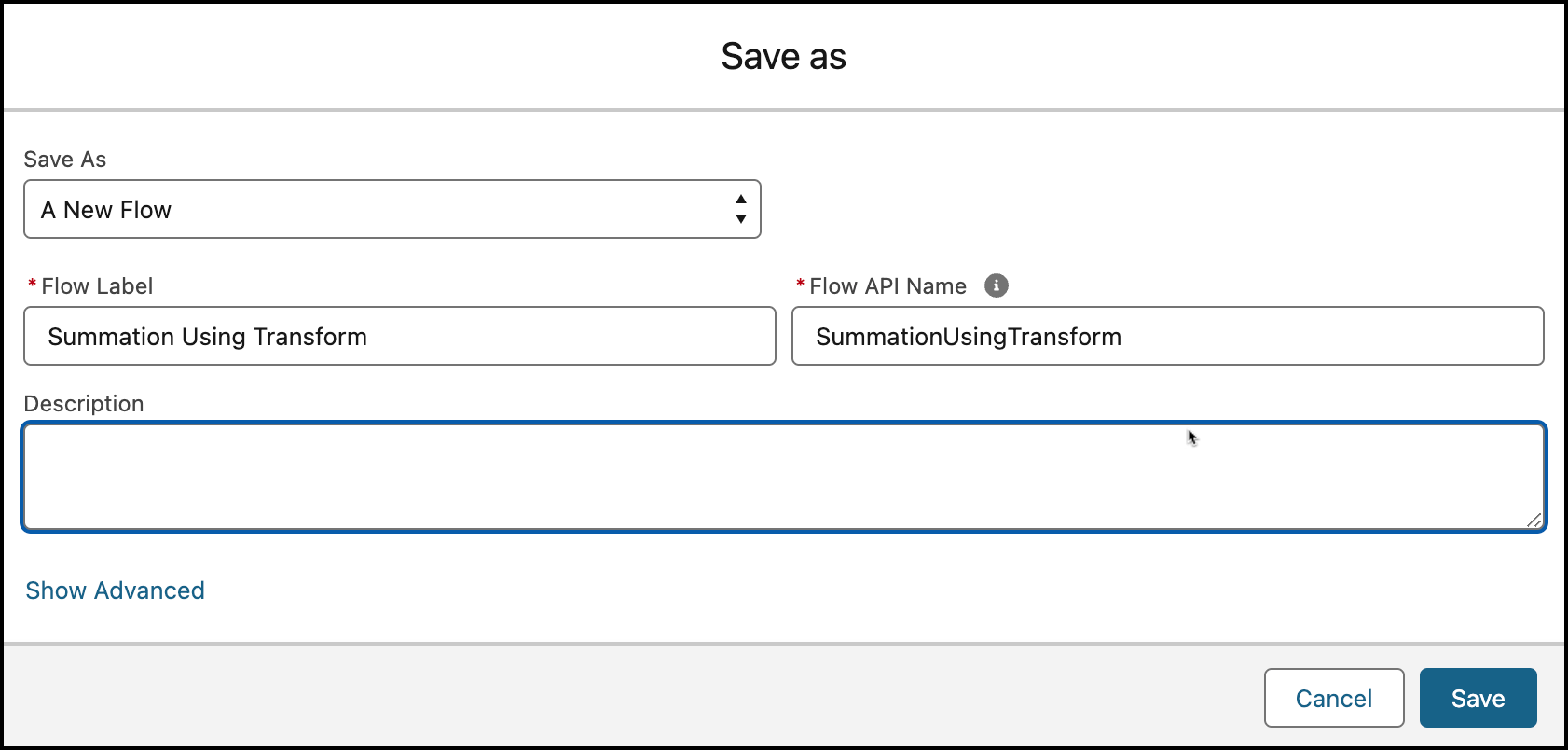
- Click Save.
- Enter the Flow Label the API Name will auto-populate.
- Click Show Advanced.
- API Version for Running the Flow: 63
- Interview Label: Summation Using Transform {!$Flow.CurrentDateTime}
- Click Save.

Almost there! Once everything looks good, click the Activate button.
Proof of Concept
I am using the On-Screen Debug feature in Flow to verify the logic’s functionality and ensure that the flow is executing as expected. This involves checking whether the calculations are accurate and confirming if the flow is correctly returning the desired sum. 
Below is a screenshot from the account that shows open opportunities and their amounts.
Formative Assessment:
I want to hear from you!
What is one thing you learned from this post? How do you envision applying this new knowledge in the real world? Feel free to share in the comments below.


How do you standardise the values if the opportunities are different currencies? For example, if we had opportunities in EUR, GBP and USD, and want to summarise it in USD? Can you do the same on the convertcurrency() version of the field? The amount(converted) doesn’t appear selectable in the transform step.