

Big Idea or Enduring Question:
-
How can I use the Transform element for data mapping and data transformation to collect data in a record collection variable and later create records?
Objectives:
After reading this blog, you’ll be able to:
- Utilize the Transform element to map and transform source data to target data.
- Create a formula expression to transform the data within the Transform element.
- Set a fixed value for the target data field within the Transform element.
- And much more!
Business Use case
Warren Mason, a Junior Developer at Gurukul on Cloud (GoC), started learning about the Flow Transform element. From his mentor, Joe Smith, he learned about a simple use case: Transform Elements Over Loops: A Modern Method for Collecting IDs in Salesforce Flow. This gave him a clear overview of the Flow Transform element.
After a few days’ break, he reached out to his mentor, Joe Smith, again and asked if he had more use cases to help him explore what else is possible with the Transform element.
Joe introduced a new use case to help Warren understand the Transform element better, as described below:
When an account is updated, find all related open opportunities and create a task for each of them with the following parameters:
- Task Subject: Opportunity Name
- Status: Not Started
- Priority: High
- Due Date: Today + 15 Days
- Assigned To: Opportunity Owner
- Related To: Opportunity Record
Automation Champion Approach (I-do):
Before diving into the discussion of the Transform element, let’s take a moment to pause and understand how you can solve the aforementioned business use case. Typically, most of us would use the Loop element, as shown below.

The Loop element is the traditional method for iterating over items within a collection variable by temporarily assigning each current record to a loop variable.
To solve the above use case, we will use the Transform element instead of the Loop element. The Transform element will help us seamlessly map fields from the source data to the target data, simplifying the overall data transformation process. In our case, the entire mapping will be completed within the Transform element. Let’s get started!
Guided Practice (We-do):
There are 4 steps to solve Warren’s business requirement using Record-triggered After-Save Flow. We must:
- Define flow properties for a record-triggered flow.
- Add a Get Records element to find related open opportunities.
- Add a Transform element to map and transform the task record collection variable.
- Add a Create Records element to bulk create tasks.
Step 1: Define Flow Properties
- Click Setup.
- In the Quick Find box, type Flows.
- Select Flows then click on the New Flow.
- Select the Start From Scratch option and click on Next.

- Select the Record-Triggered Flow option, click on Create
- Object: Account
- Trigger the Flow When: A record is created or updated
- Optimize the Flow For: Action and Related Records
- Click the X at the top to save your changes.


Step 2: Adding a Get Record Element to Find Related Open Opportunities
The next step is using the Get Element to find related open opportunities. We will apply the filter logic to find the related open opportunities here instead of using an additional element.
- On Flow Designer, click on the +icon and select the Get Records element.
- Enter a name in the Label field; the API Name will auto-populate.
- Select the Opportunity object from the dropdown list.
- Select All Conditions Are Met (AND).
- Set Filter Conditions
- Row 1:
- Field: AccountId
- Operator: Equals
- Value: {!$Record.Id}
- Click Add Condition
- Row 2:
- Field: IsClosed
- Operator: Equals
- Value: {!$GlobalConstant.False}
- Row 1:
- How Many Records to Store:
- Select All record
- How to Store Record Data:
- Choose the option to Choose fields and let Salesforce do the rest.
- Select Opportunity Fields to Store in Variable
- Id
- Name
- StageName
- AccountId
- OwnerId
- Select Opportunity Fields to Store in Variable
- Choose the option to Choose fields and let Salesforce do the rest.
- Click the X at the top to save your changes.


Step 3: Add a Transform Element to Map and Transform the Task Record Collection Variable
Now we will add a Transform element to map task records for each open opportunity and transform the data as per the requirements.
- On Flow Designer, click on the +icon and select the Transform element.
- Enter a name in the Label field; the API Name will auto-populate.
- For Source Data select {!Get_Open_Opportunities}.

- For Target Data select the following options:
- Data Type: Record
- Allow multiple values (collection): Checked
- Object: Task
- Click Create

- For the ActivityDate, let’s create a formula within Transform element.

- For the Status, set a fixed value, Not Started.

- For the Priority, set a fixed value, High.

- Map the OwnerId (Source Data) to the OwnerId (Target Data), as demonstrated below.

- Map the Name (Source Data) to the Subject (Target Data), as demonstrated below.
- Map the Id (Source Data) to the WhatIs (Target Data), as demonstrated below.
- In the end, connect Id from Source to Target Collection variable.

- Click the X at the top to save your changes.


Step 4: Add a Create Records Element to Bulk Create Tasks
The next step is to create tasks as part of a single DML operation. For this, we will use the Create Records element.
- On Flow Designer, click on the + icon and select Create Records element.
- Input the following information:
- Enter Label the API Name will auto-populate.
- How Many Records to Create: Multiple
- Set Field Values for the Opportunity
- Record Collection: {!Data_Transform_for_Tasks}
- Update Existing Records: Disabled
- Click the X at the top to save your changes.


In the end, Warren’s Flow will look like the following screenshot:

Once everything looks good, perform the steps below:
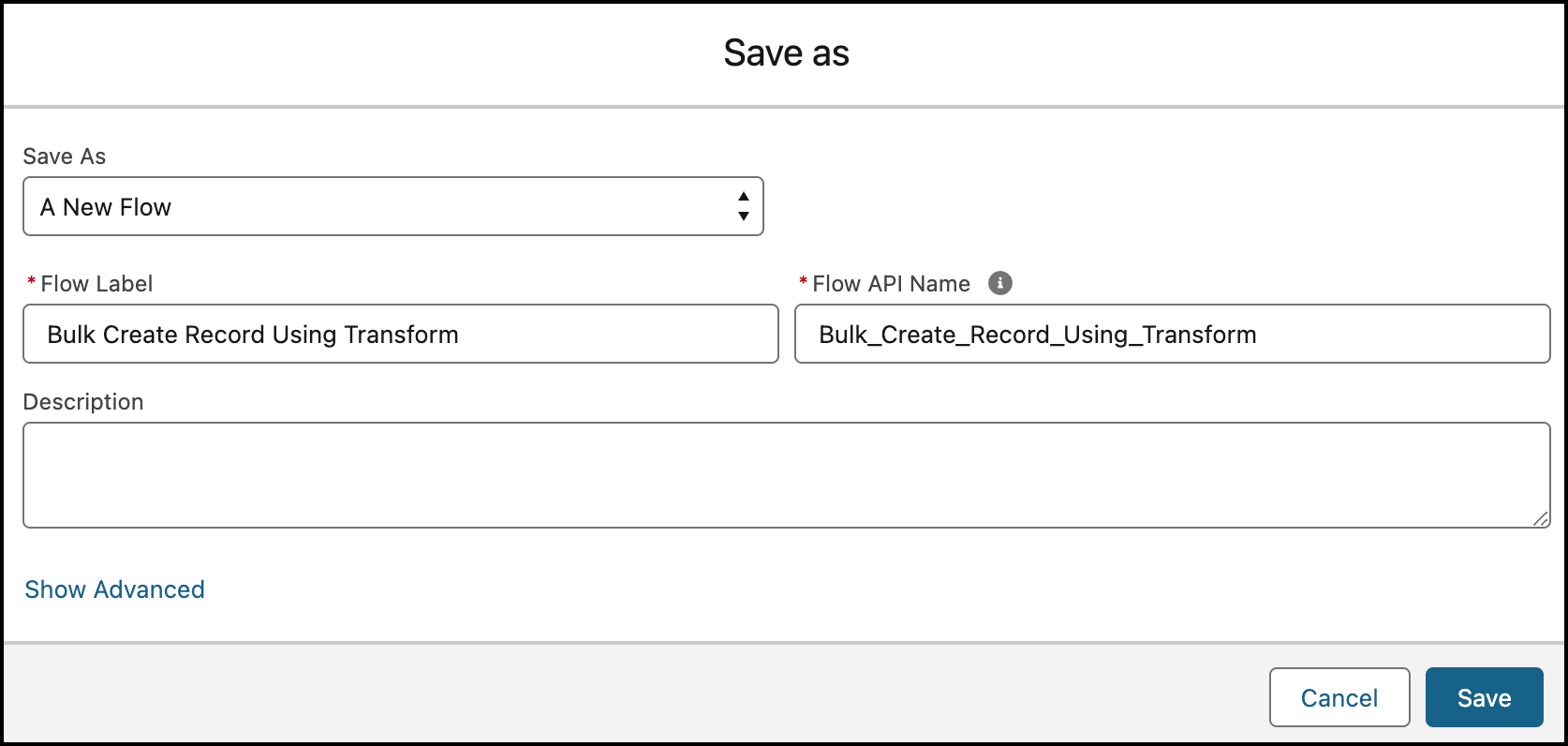
- Click Save.
- Enter the Flow Label the API Name will auto-populate.
- Click Show Advanced.
- API Version for Running the Flow: 63
- Interview Label: Bulk Create Record Using Transform {!$Flow.CurrentDateTime}
- Click Save.

Almost there! Once everything looks good, click the Activate button.
Proof of Concept
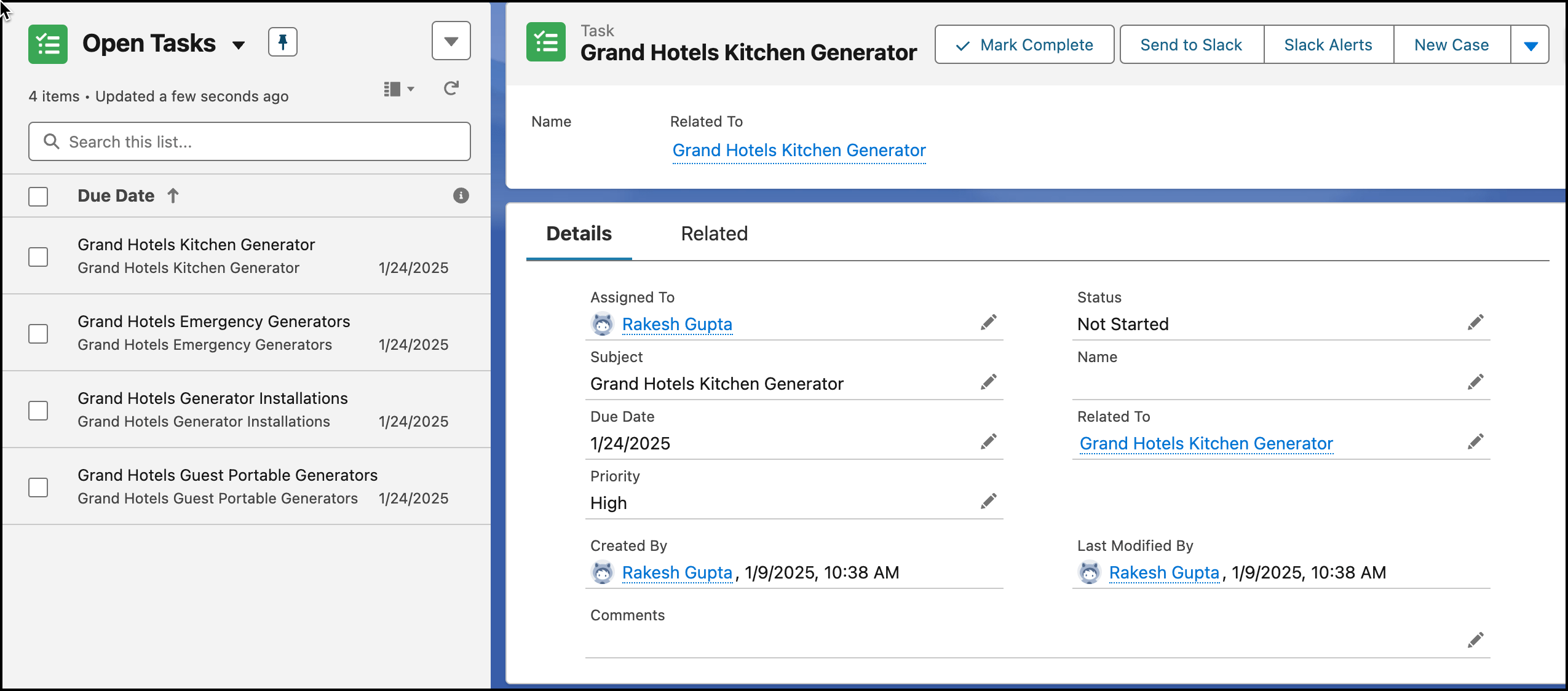
I am using On-Screen Debug in Flow to check if the logic is working and to confirm whether tasks are being created for open opportunities.
If you look at the debug log, the Transform element returned 4 tasks as the Account has 4 open opportunities. Therefore, the Create Records element inserted 4 tasks.

Task Created by Flow:
Formative Assessment:
I want to hear from you!
What is one thing you learned from this post? How do you envision applying this new knowledge in the real world? Feel free to share in the comments below.


Hi. I am SURE this is user error but I am unable to surface the formula icon in the Transform element as shown…This is could be related to your org release, check after 8th of Feb 2025 for the new spring releases
No luck 🙁 when I click on the field
Hi. I am SURE this is user error but I am unable to surface the formula icon in the Transform element as shown in this article in step 5. I have hovered and clicked on the ActivityDate field within the Target data map to no avail. Any ideas on what I may be missing? Thank you 🙂
Not sure. Click on the field, and it will bring up the option that allows you to select either a formula or a value
Thank you so much for the content! It was very helpful. I worked with transform today but faced some challenges along the way. Your explanation made a huge difference.
You’re very welcome! I’m so glad the content was helpful. Transform can definitely be tricky at times, but it’s great to hear my explanation made a difference.
Hello Rakesh – This post is wonderful. I am definitely going to look into using Transform over Loops moving forward. I have a very similar use case, however, some minor differences I’ve outlined below. I’d love your feedback and any recommendations you can provide:
Use Case: Action button on Voice Call record that when clicked launches a screen flow. The screen flow would give a list of possible follow-up tasks for the sales agent to create. They can also specify different due dates for each task selected (they can select 1 or multiple tasks).
Current Flow: I have the screen flow set up very similarly to the initial flow outlined above, which uses a Get Records to grab the Voice Call recordId from the page the flow will be launched from, then the initial screen where agent selects tasks for follow up, then an apex action that splits the selections into separate variables, then a Loop to iterate through each selection and assign WhatId & WhoId, as well as the task parameters like subject, status, priority, etc., then finally adds those items to a collection, and a Create Records element at the end which creates the tasks in bulk from the collection.
The issue I’m running into is that the collection only seems to be taking the 1st date that is selected in the initial screen, despite designating other dates for the 2nd, 3rd, or 4th tasks that are selected. The flow is creating the tasks with the correct parameters, but the date it’s assigning to the Due Date field is the same across all tasks created.
I attempted to add a decision within the Loop to decide which task was being selected, and assigning the due date selected in the first screen, but now the flow isn’t creating the tasks at all.
Any insight is appreciated!
Thank you,
Mark
Thanks for reaching out! Your use case is interesting, and I’d be happy to help. Could you please send me an email with the details and include a screenshot of your flow?