


Last Updated on February 5, 2025 by Rakesh Gupta
Big Idea or Enduring Question:
-
How can I build a counter component that elevates user experience for adding or removing numbers in Salesforce Screen Flows?
Objectives:
After reading this blog, you’ll be able to:
- Create a custom counter component using Lightning Web Components for Screen Flows
- Add and configure your custom Lightning Web Component within a Screen Flow
- Add color to standard utility SVG icons
- Pass values from the custom component back to the flow
- And much more
Business Use case
Warren Mason, is working as a Junior Developer at Gurukul on Cloud (GoC), met with Sales Director Amanda Wilson to discuss a new requirement. During an inventory audit, a store manager discovered discrepancies in the stock levels of various products and reported this to Amanda.
To address this issue, the company needs an efficient solution for adjusting the quantity of items in stock during inventory audits at the product level. Amanda suggested enhancing the user experience by adding a button on product page that opens a Screen. This Screen would allow users to increment or decrement stock levels directly and efficiently, thereby streamlining the inventory management process.
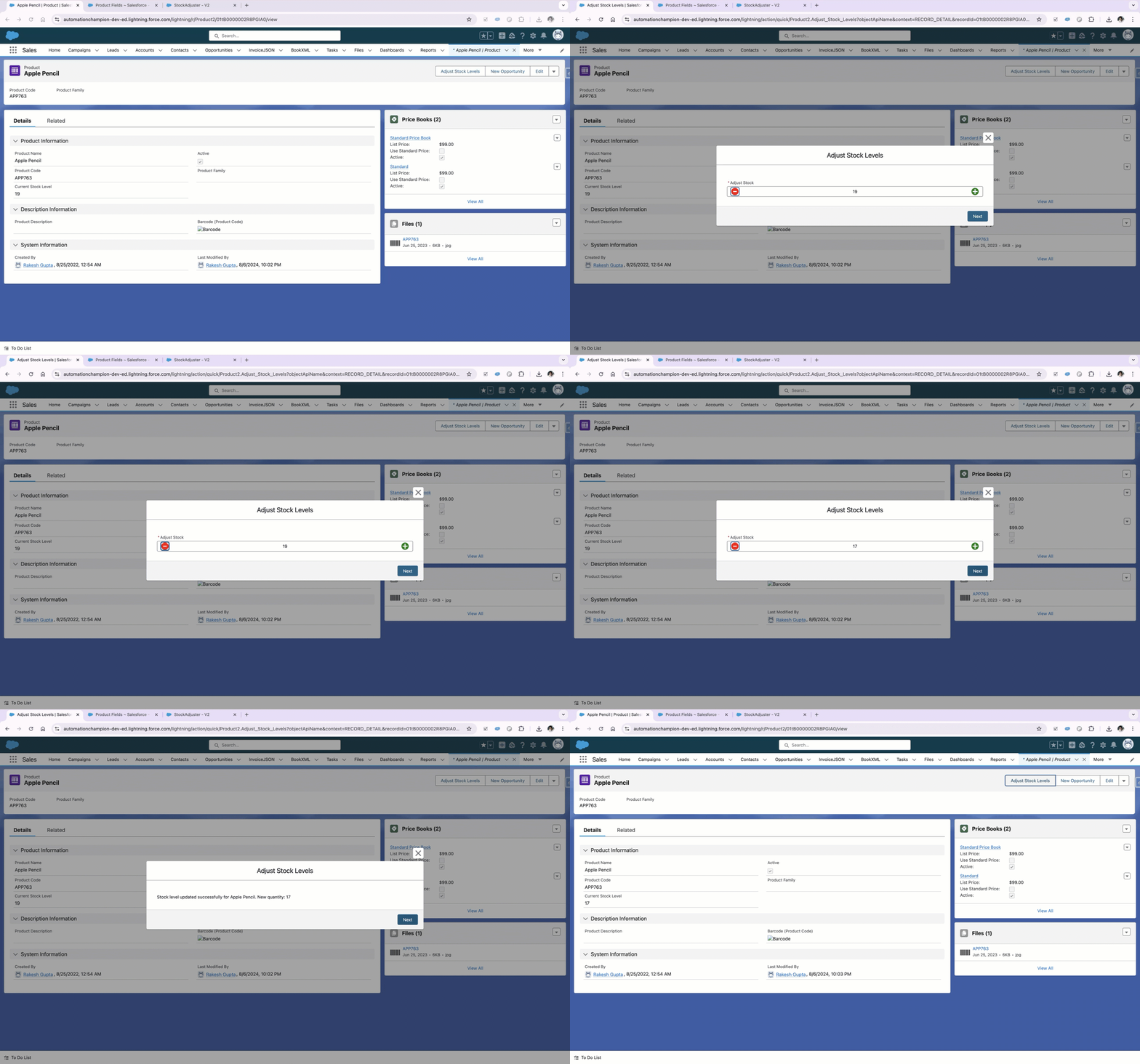
What Is a Counter Component?
A Counter Component is a form element that includes a label and a numeric input field. Users can easily increase or decrease the value in the input field by clicking on accompanying button icons, making it a convenient tool for adjusting numerical values quickly and efficiently.
Automation Champion Approach (I-do):
There are a few possible solutions for the above business scenario. We will use Lightning Web Component and Screen Flow to solve the requirement.
Guided Practice (We-do):
There are 4 steps to solve Warren’s business requirement using Lightning Web Component and Screen Flow. We must:
- Create a custom field on the product to store the inventory.
- Create a Counter custom component using Lightning Web Component.
- Salesforce Flow Steps:
- Define flow properties for Screen Flow.
- Add a text variable to store the product Id.
- Add a Get Record element to get product details.
- Add a Screen element to display the counter custom component.
- Add an Update element to update the product.
- Add a second component to display the confirmation message.
- Create a Quick Action to launch the Flow and add it to the product page.
Step 1: Create a Custom Field on the Product to Store the Inventory
Let’s create a custom field on the product object to store the inventory.
- Click Setup.
- In the Object Manager, type Product.
- Select Fields & Relationships, then click New.
- Select Number as Data Type, then click Next.
- Enter Field Label and click the tab key, the Field Name will populate.
- Enter the details:
- Length 3
- Decimal Places 0
- As a best practice, always input a description and Help Text.
- Click on the Next button.
- Enter the details:
- Set the Field-level Security for the profiles.
- Add this field to Page Layout.
- Click Save.


Step 2: Create a Counter Component Using the Lightning Web Component
First, create a Counter Lightning Web Component that can be used with Screen Flow using the code below. If you don’t know how to create a Lightning Web Component, please review this developer guide Create a Lightning Web Component.
screenCounterComponent.html
<template>
    <div class="slds-form-element">
        <label class="slds-form-element__label slds-m-right_none" for="state-required">
            <abbr class="slds-required" title="required">*</abbr>{label}
        </label>
        <div class="slds-form-element__control">
            <button class="slds-button slds-button_icon slds-button_icon-small slds-input__button_decrement"
                    title="Decrement counter"
                    onclick={decrementCounter}>
                <lightning-icon icon-name="utility:ban" size="small" class="decrement-color"></lightning-icon>
                <span class="slds-assistive-text">Decrement counter</span>
            </button>
            <input type="number" id="state-required"
                   placeholder="1" required
                   class="slds-input slds-input_counter {counterClass}"
                   value={counterValue}
                   onchange={handleInputChange} />
            <button class="slds-button slds-button_icon slds-button_icon-small slds-input__button_increment"
                    title="Increment counter"
                    onclick={incrementCounter}>
                <lightning-icon icon-name="utility:new" size="small" class="increment-color"></lightning-icon>
                <span class="slds-assistive-text">Increment counter</span>
            </button>
        </div>
    </div>
</template>
screenCounterComponent.css
.increment-color {
    --sds-c-icon-color-foreground-default: green;
}

.decrement-color {
    --sds-c-icon-color-foreground-default: red;
}
screenCounterComponent.js
import { LightningElement, api, track } from 'lwc';

export default class ScreenCounterComponent extends LightningElement {
    @api label;
    @api defaultValue = 0;
    @api value;

    @track counterValue = this.defaultValue;

    connectedCallback() {
        this.counterValue = this.defaultValue;
    }

    incrementCounter() {
        this.counterValue++;
        this.passValueToFlow();
    }

    decrementCounter() {
        if (this.counterValue > 0) {
            this.counterValue--;
            this.passValueToFlow();
        }
    }

    handleInputChange(event) {
        const inputValue = parseInt(event.target.value, 10);
        if (!isNaN(inputValue)) {
            this.counterValue = inputValue;
            this.passValueToFlow();
        }
    }

    passValueToFlow() {
        this.value = this.counterValue;
        const valueChangeEvent = new CustomEvent('change', {
            detail: { value: this.counterValue }
        });
        this.dispatchEvent(valueChangeEvent);
    }
}
screenCounterComponent.js-meta.xml
<?xml version="1.0" encoding="UTF-8"?>
<LightningComponentBundle xmlns="http://soap.sforce.com/2006/04/metadata" fqn="counterComponent">
    <apiVersion>61.0</apiVersion>
    <isExposed>true</isExposed>
    <masterLabel>LWC Counter Component</masterLabel>
    <description>LWC Counter Component</description>
    <targets>
        <target>lightning__FlowScreen</target>
    </targets>
    <targetConfigs>
        <targetConfig targets="lightning__FlowScreen">
            <property name="label" type="String" label="Counter Label" role="inputOnly" />
            <property name="defaultValue" type="Integer" label="Default Value" />
            <property name="value" type="Integer" role="outputOnly" label="Counter Value" />
        </targetConfig>
    </targetConfigs>
</LightningComponentBundle>
Copy code from GitHub or Install using this URL.
Step 3.1: Define Flow Properties
- Click Setup.
- In the Quick Find box, type Flows.
- Select Flows then click on the New Flow.
- Select the Start From Scratch option and click on Next.


Select the Screen Flow option and click on Create and configure the flow.
Step 3.2: Add a Text Variable to Store Product Id
- Under Toolbox, select Manager, then click New Resource to store the product Id.
- Input the following information:
- ResourceType: Variable
- API Name: recordId
- Data Type: Text
- Default Value: {!$GlobalConstant.EmptyString}
- Check Available for Input
- Check Available for Output
- Click Done.

Step 3.3: Adding a Get Record Element to Get Product Details
The next step is using the Get Element to find the details of the current product.
- On Flow Designer, click on the +icon and select the Get Records element.
- Enter a name in the Label field; the API Name will auto-populate.
- Select the Product2 object from the dropdown list.
- Select All Conditions Are Met (AND).
- Set Filter Conditions
- Row 1:
- Field: AccountId
- Operator: Equals
- Value: {!recordId}
- Row 1:
- How Many Records to Store:
- Select Only the first record
- How to Store Record Data:
- Choose the option to Automatically store all fields.
- Click Done.


Step 3.4: Add a Screen Element to Display the Counter Custom Component
- On Flow Designer, click on the +icon and select the Screen element.
- Input the following information:
- Enter Label the API Name will auto-populate.
- Under the Input section on Screen Element, drag and drop the LWC Counter Component onto the screen.
- Input the following information:
- Api Name: StockAdjuster
- Counter Label: Adjust Stock
- Default Value: {!getProduct.Current_Stock_Level__c}
- Click Done.


Step 3.5: Adding an Update Records Element to Update the Product
The next step is to update the product record by using the value user has decided on the previous screen. We will use the Update Records element.
- On Flow Designer, click on the +icon and select the Update Records element.
- Enter a name in the Label field; the API Name will auto-populate.
- For How to Find Records to Update and Set Their Values select Specify conditions to identify records, and set fields individually
- Object: Product2
- Select All Conditions Are Met (AND).
- Set Filter Conditions
- Row 1:
- Field: Id
- Operator: Equals
- Value: {!recordid}
- Row 1:
- Set Field Values for the Opportunity Records
- Row 1:
- Field: Current_Stock_Level__c
- Value: {!StockAdjuster.value}
- Row 1:
- Click Done.


Step 3.6: Add a Second Screen Element to Display the Confirmation message
- On Flow Designer, click on the +icon and select the Screen element.
- Input the following information:
- Enter Label the API Name will auto-populate.
- Under the Input section on Screen Element, drag and drop the Display Text component onto the screen.
- Input the following information:
- Message: Stock level updated successfully for {!getProduct.Name}. New quantity: {!StockAdjuster.value}
- Click Done.


Once everything looks good, perform the steps below:
- Click Save.
- Enter the Flow Label the API Name will auto-populate.
- Click Show Advanced.
- API Version for Running the Flow: 61
- Interview Label: StockAdjuster {!$Flow.CurrentDateTime}
- Click Save.

Almost there! Once everything looks good, click the Activate button.
Step 4: Create a Quick Action on Product to Launch the Flow
The next step is to create a Quick Action on the Account object to launch the Screen Flow. Salesforce will automatically pass the Account Id to the recordId variable.
- Click Setup.
- In the Object Manager, type Product.
- Select Buttons, Links, and Action, then click New Action.
- Input the following information:
- Select Flow as Action Type.
- Select StockAdjuster as Flow.
- Enter Label (Adjust Stock Levels) the Name will auto-populate.
- Click Save.


Make sure to add the Quick action to the Product Lightning Record Page.
Formative Assessment:
I want to hear from you!
What is one thing you learned from this post? How do you envision applying this new knowledge in the real world? Feel free to share in the comments below.


This is such a helpful post for anyone working with Salesforce screen flows! The idea of adding a customizable counter component is not only creative but also super practical. It makes things so much easier when users need to input or adjust numbers, whether it’s for selecting quantities, setting budgets, or any other task that involves numbers.
I love how the component allows you to set minimum and maximum limits, step increments, and even customize the look and feel. These small details can really make a flow look polished and more user-friendly. Plus, the step-by-step guide in the article is easy to follow, even for those who might not be experts in Salesforce development.
This is definitely something I’m going to try in my next project. Thanks for sharing such a simple yet impactful solution to improve screen flows!